Introduction to the Best Image Upscaler
What is an Image Upscaler and How It Works
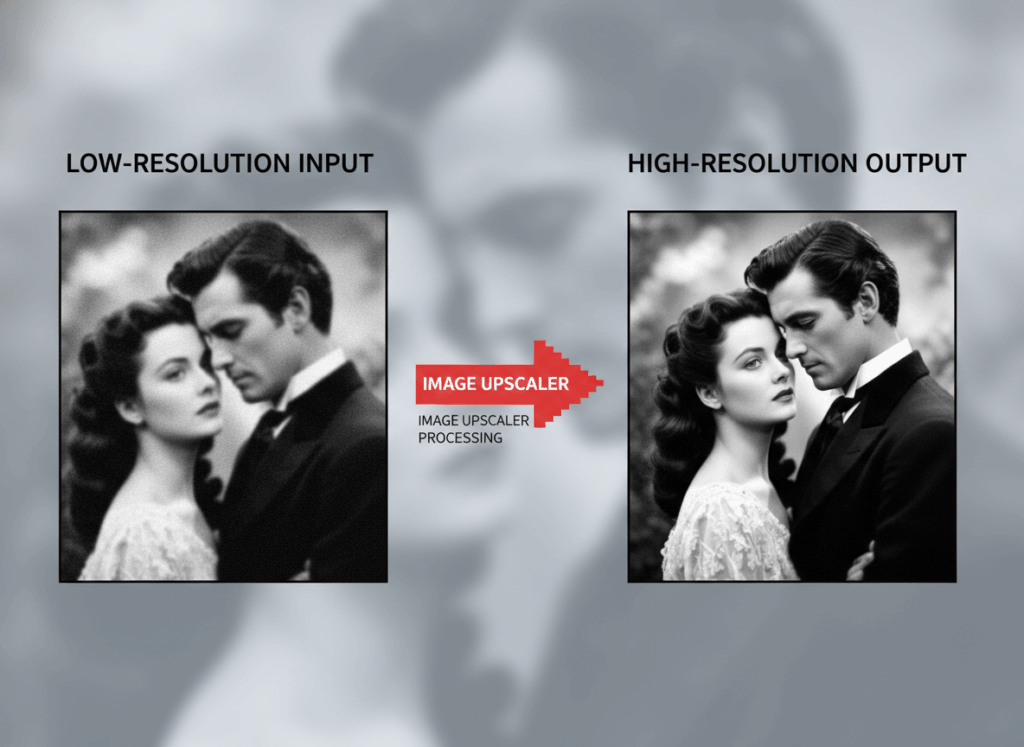
If you’ve ever tried to enlarge a photo and noticed it turning blurry or pixelated, you’ve experienced the problem that image upscalers are designed to solve. An image upscaler is a tool that takes a small or low-resolution image and increases its size while keeping it clear and detailed. Unlike basic resizing, which simply stretches pixels, the best image upscaler uses advanced algorithms, often powered by AI, to predict missing details and smooth out edges.
For example, imagine you have a favorite photo taken on an old phone camera. You want to print it for your wall, but the resolution is too low. A proper image upscaler can enlarge it several times without losing clarity, making the photo look almost like it was originally captured in high resolution. That’s the magic behind these tools.
Why Choosing the Best Image Upscaler Matters
Not all upscalers are created equal. Some tools may enlarge images but leave them fuzzy or unnatural, while others can actually enhance colors and textures, making your photos look professional. Choosing the best image upscaler matters because it affects the final quality, usability, and even your workflow efficiency. Whether you’re a designer, a social media creator, or just someone who wants their personal photos to look great, picking the right tool can save you time and frustration.
Top 5 Best Image Upscalers in 2026
Here’s our handpicked list of the top five free image upscalers for 2026. Each of these tools is online, easy to use, and offers unique strengths depending on your needs.
VisualGPT – AI-Powered Image Upscaler
VisualGPT stands out as a powerful AI-driven tool and is widely considered one of the best image upscaler available today. It doesn’t just enlarge images—it analyzes every pixel and predicts missing details, ensuring your upscaled photo looks sharp and natural. Even if a face in a photo is extremely blurry, VisualGPT, as one of the best image upscaler, can restore facial features with impressive accuracy, making old portraits or low-resolution selfies look almost brand new.
Beyond portrait enhancement, VisualGPT excels at old photo restoration and colorization. If you have vintage black-and-white photos, this best image upscaler can enlarge them, remove scratches or noise, and even add realistic colors, bringing memories back to life. Product images, AI-generated art, and screenshots all benefit from VisualGPT’s AI, which maintains textures, sharp edges, and vibrant colors during enlargement, proving why it is among the best image upscaler for multiple scenarios.
The free tier lets you upscale a limited number of images per day, while the premium version allows higher resolutions, batch processing, and faster results—perfect for professionals or creators who need a reliable best image upscaler for daily work.
Best Use Cases: VisualGPT is ideal for AI-generated images, portraits, and product photos. For instance, if you generate art with an AI tool and want to print it or use it in high-resolution content, VisualGPT can make it crisp and professional.
How to Use VisualGPT:
Step 1: Visit the Website: Go to VisualGPT.
Step 2: Upload Your Image: Click “Upload” and select the photo, artwork, or screenshot you want to upscale.
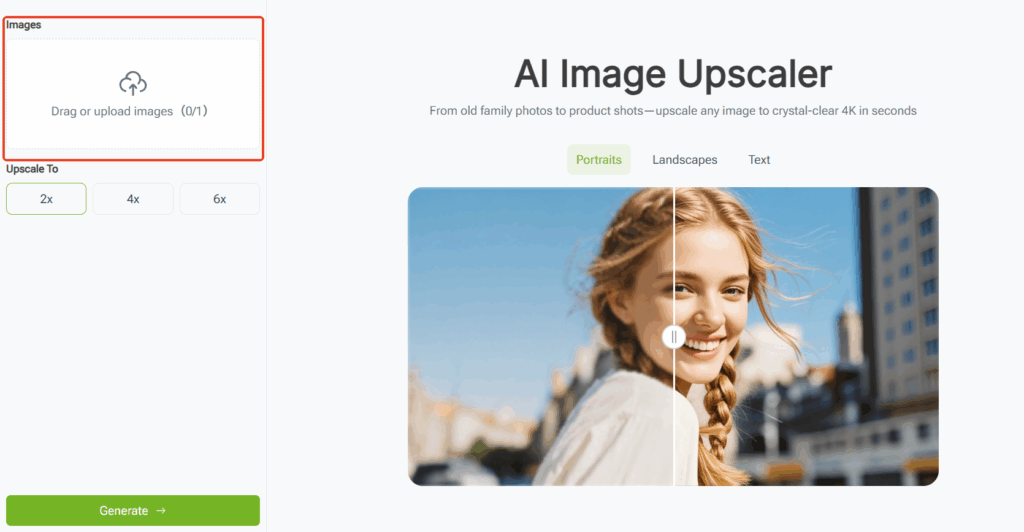
Step 3: Choose Upscaling Factor: Select how much you want to enlarge the image, e.g., 2x, 4x, or 6x.
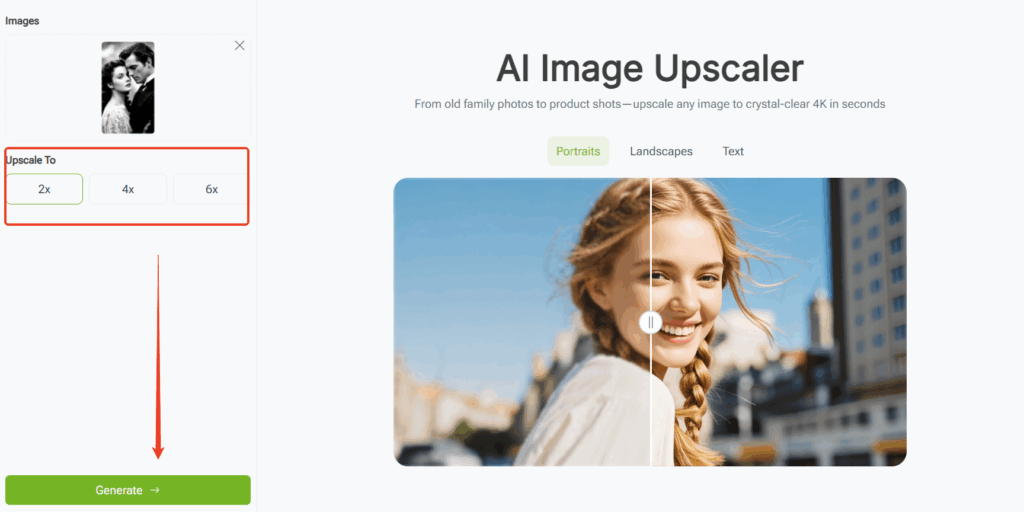
Step 4: Preview and Adjust: VisualGPT shows a preview—check the quality and make adjustments if needed.
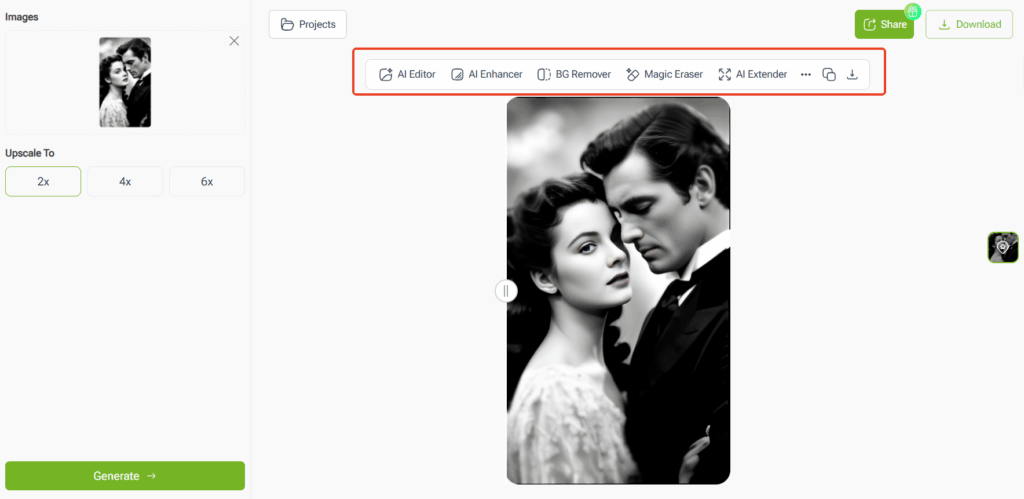
Step 5: Download the Upscaled Image: Once satisfied, click “Download” to save the high-resolution image to your device.
Tip: For batch upscaling multiple images, use the premium plan to save time and ensure consistent quality across all files.
Canva – Easy-to-Use Online Image Upscaler
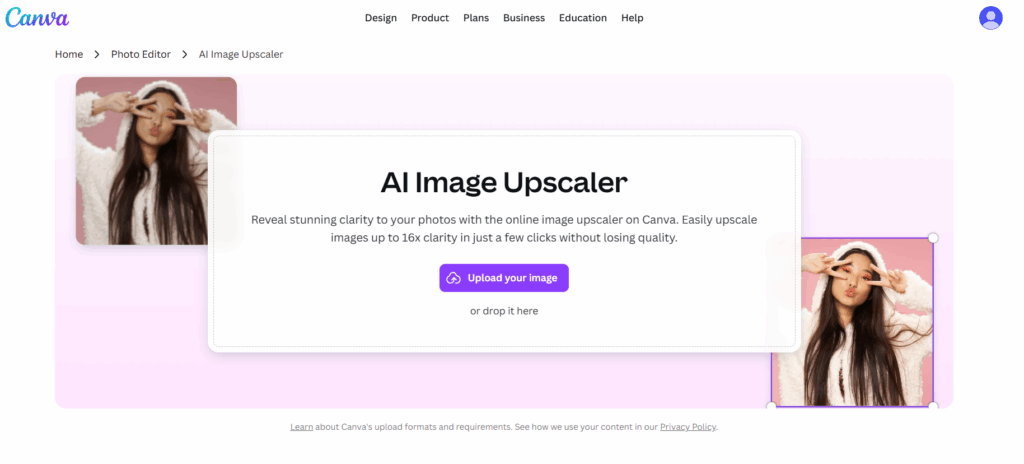
Canva is widely known for its design features, but it also includes a simple image upscaler. Its interface is beginner-friendly, allowing you to enlarge photos or graphics with a single click. While it might not offer advanced AI detail prediction like VisualGPT, it’s perfect for everyday social media images or marketing visuals.
Best Use Cases: Canva works well if you’re creating Instagram posts, presentation slides, or flyers. You can quickly upscale images without leaving your design workspace.
Freepik – Upscale Illustrations and Graphics
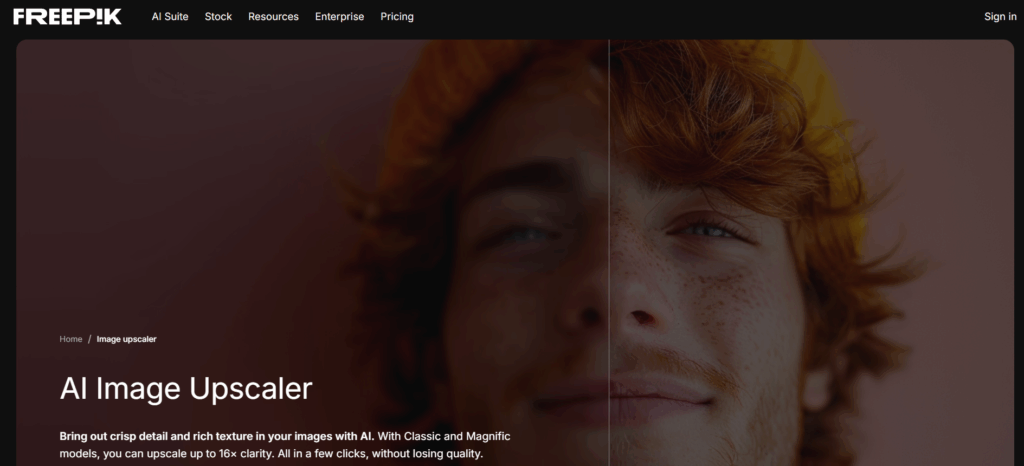
Freepik focuses on vector art, illustrations, and graphics. While traditional photo upscalers may struggle with these types of images, Freepik keeps lines sharp and colors vibrant. The free version includes watermarks and limits resolution, but upgrading removes restrictions.
Best Use Cases: This is ideal if you’re working on creative projects, infographics, or digital artwork that needs a crisp finish. For example, if you design posters using vectors, Freepik ensures everything scales cleanly.
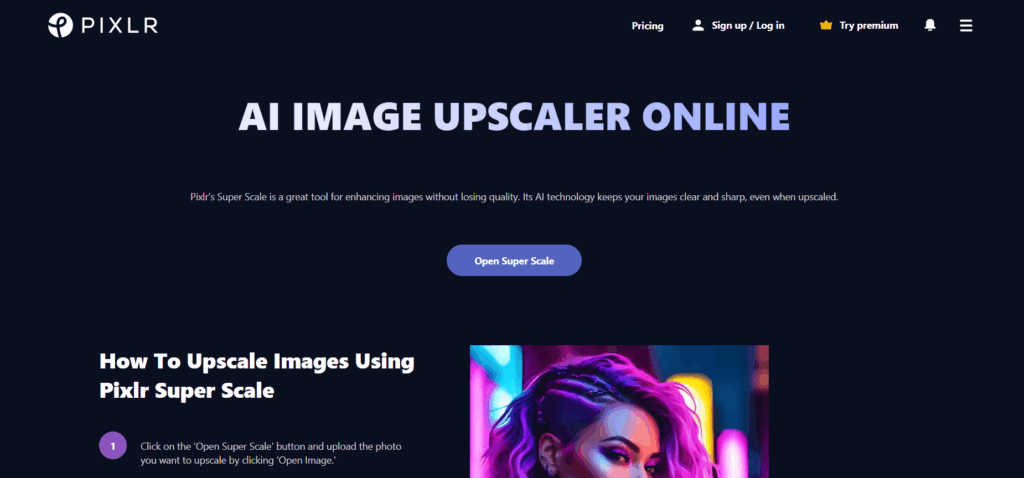
Pixlr – Fast Online Photo Upscaler
Pixlr is a speedy, browser-based upscaler that works well for everyday photo enlargements. It doesn’t require downloads, and you can apply different enhancement modes while resizing. Though simpler than AI-powered tools like VisualGPT, it’s perfect for quick edits.
Best Use Cases: Use Pixlr for travel photos, casual images, or web content where speed matters. Its fast processing helps if you need to upscale multiple images without spending too much time.
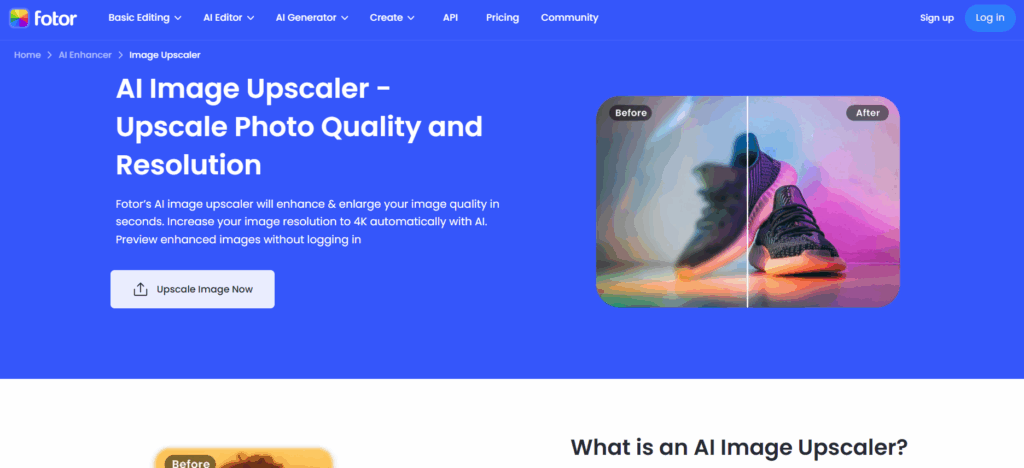
Fotor – Comprehensive Online Image Upscaler
Fotor offers a more rounded experience, supporting batch processing and multiple formats. Its AI-powered clarity enhancements make it strong for portraits and product photography. The free version has size limits, but it still provides excellent results for most users.
Best Use Cases: Fotor is great for e-commerce product photos, headshots, or any scenario where you need both quality and efficiency.
How to Choose the Best Image Upscaler for Your Needs
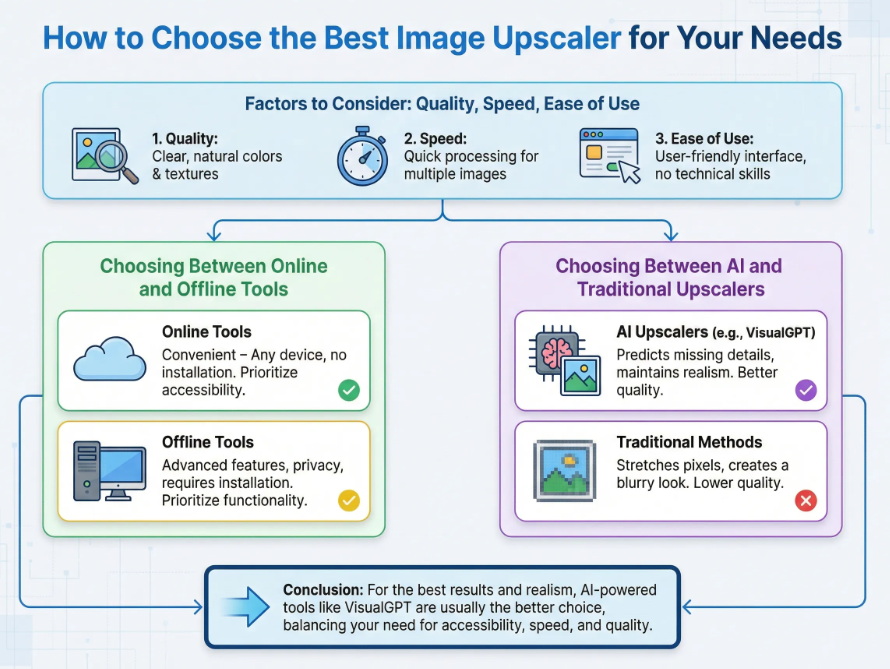
Factors to Consider: Quality, Speed, Ease of Use
When picking the best image upscaler, consider these three things:
- Quality: How clear are the upscaled images? Do the colors and textures stay natural?
- Speed: Does it process images quickly? This matters if you have multiple images.
- Ease of Use: Is the interface user-friendly? Can you upscale without technical knowledge?
Choosing Between Online and Offline Tools
Online tools are convenient—you can use them on any device without installing software. Offline tools may offer more advanced features and privacy, but they usually require installation. Decide what’s more important for you: accessibility or functionality.
Choosing Between AI and Traditional Upscalers
AI upscalers, like VisualGPT, predict missing details and maintain image realism. Traditional methods only stretch pixels, often creating a blurry look. If quality matters, AI-powered tools are usually the better choice.
Best Image Upscaler for Different Scenarios
Choosing the best image upscaler depends heavily on the type of image you’re working with. Different scenarios require different strengths from your tool, whether it’s preserving facial details, enhancing textures, or keeping text readable. Here’s a detailed look at common use cases and which tools perform best.
Photos and Portraits
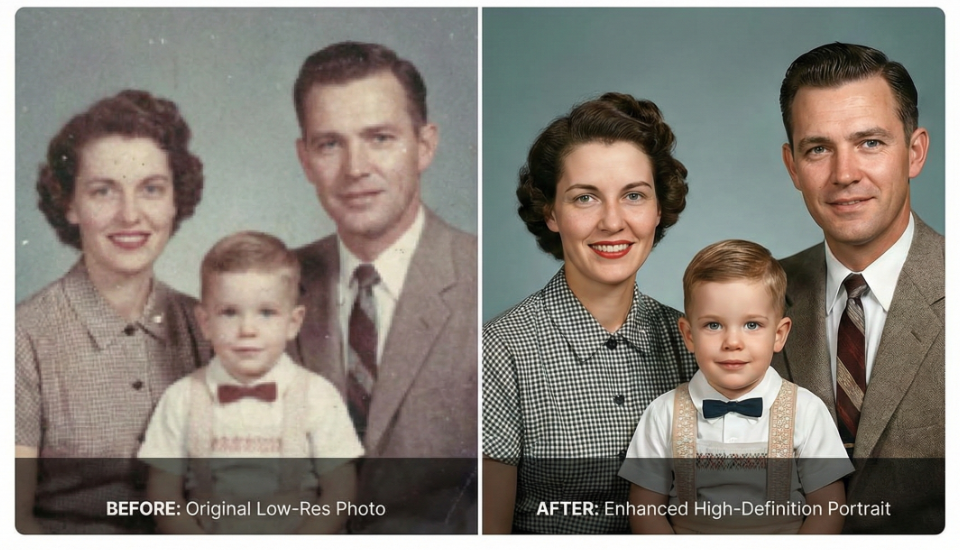
For real-life photos and portraits, clarity and color accuracy are critical. Using the best image upscaler ensures that faces retain natural features, even if the original image is slightly blurry. Tools like VisualGPT excel in this scenario because their AI algorithms can restore skin tones, sharpen eyes, and even recover subtle facial expressions. Even old or low-resolution portraits can be enhanced, making them suitable for printing or social media. For example, a scanned photo from your childhood can be transformed into a crisp, vibrant image that preserves all the original details.
Artwork and Illustrations
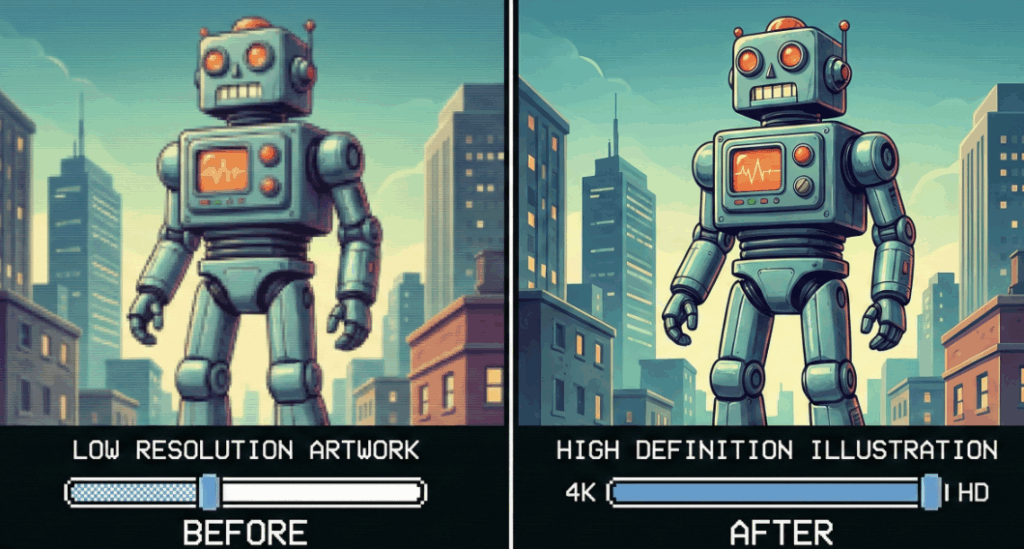
Upscaling illustrations, vector art, or digital paintings requires tools that maintain sharp lines and vibrant colors. Freepik is excellent for vector graphics, while VisualGPT and Fotor can upscale digital artwork without losing the quality of brush strokes or textures. The best image upscaler for illustrations will retain every intricate detail and color gradient, allowing artists to print high-resolution posters or create detailed portfolios. For instance, if you’ve designed an AI-generated concept art piece, using a top-tier image upscaler ensures that all the fine details remain intact when enlarged.
Text and Typography
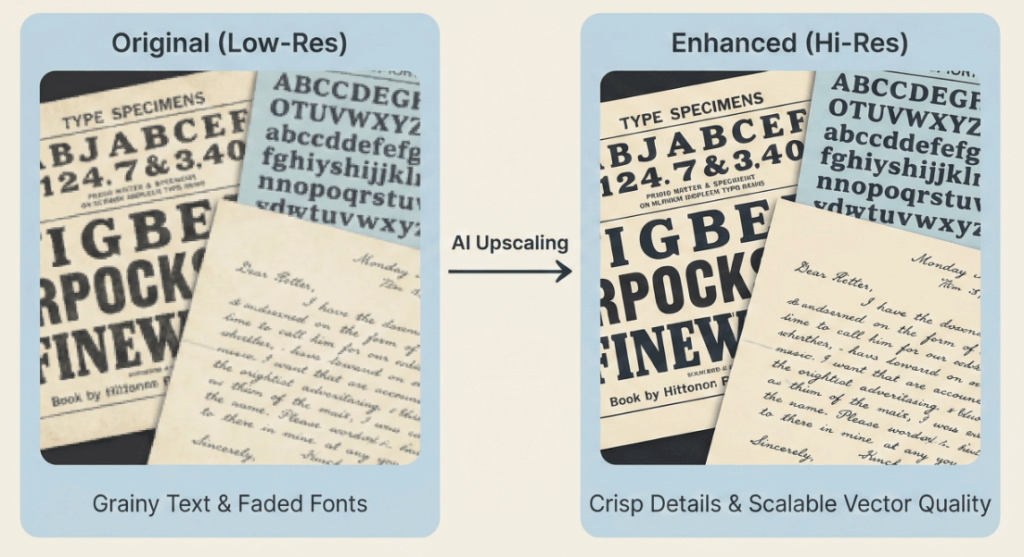
When working with screenshots, infographics, or slides containing text, the best image upscaler must preserve readability. Canva and Pixlr shine in this category because they enlarge text without blurring or distorting letters. This is particularly useful for content creators who need to present diagrams, charts, or instructional slides. Even if the screenshot is small, using a quality upscaler will ensure that every line and font stays crisp, avoiding time-consuming rework.
Product Images and E-commerce
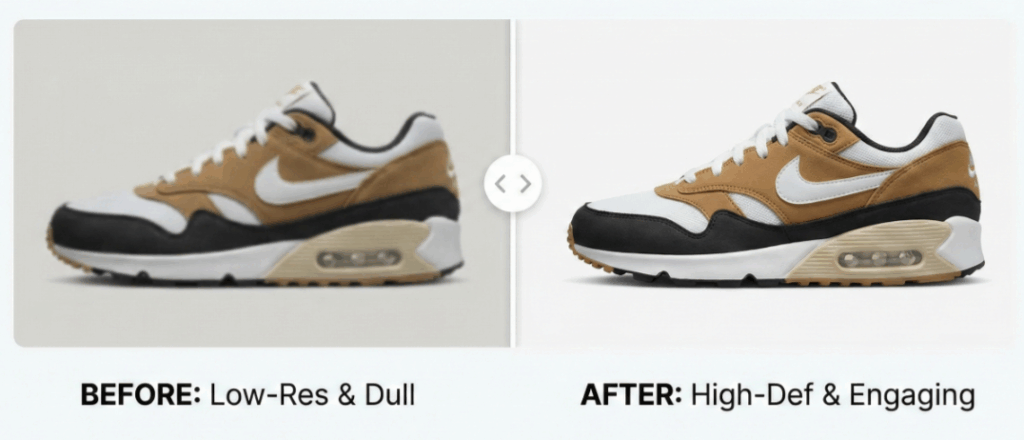
Product photography requires images to be sharp, detailed, and visually appealing. Fotor and VisualGPT are ideal best image upscaler choices for e-commerce because they enhance texture, color, and lighting, making products look professional and true-to-life. For example, a clothing store can upscale images of garments to highlight stitching and fabric details, which increases customer confidence. High-resolution product images also improve website aesthetics and conversion rates.
Screenshots
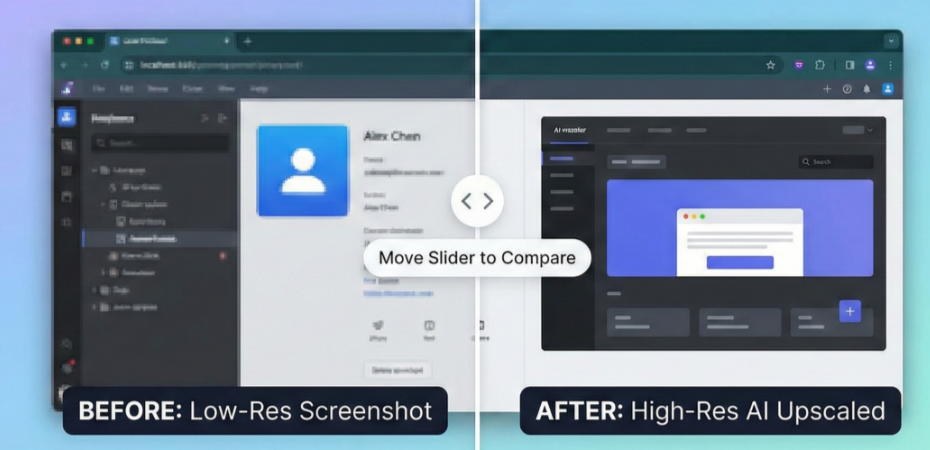
Screenshots from apps, websites, or tutorials often contain small UI elements that must stay readable. Canva, Pixlr, and VisualGPT handle this well, allowing you to enlarge interfaces without losing icon clarity or text sharpness. The best image upscaler in this scenario ensures that every button, menu, and annotation remains perfectly visible, which is essential for tech bloggers, educators, or online guides.
By selecting the right best image upscaler for your specific scenario—whether it’s photos, portraits, illustrations, text, product images, or screenshots—you can achieve professional-quality results with minimal effort. Each scenario benefits from different features like AI enhancement, texture preservation, or text clarity, making it important to match your tool to the task.
Tips to Get the Best Results with Your Image Upscaler
Recommended Settings and Techniques
Most tools allow you to select the upscaling factor, like 2x, 4x, or higher. Start with a moderate increase and check results before going further. Some tools also have enhancement modes—experiment to see which preserves your image best.
Avoiding Common Mistakes
Avoid enlarging images multiple times in small increments; it can reduce quality. Also, check for file format support—PNG or TIFF often retain more detail than JPEG.
Batch Upscaling and Workflow Optimization
If you have multiple images, choose tools that support batch processing. VisualGPT and Fotor allow batch upscaling, which saves time. Organize your files before uploading to streamline your workflow.
Frequently Asked Questions About the Best Image Upscaler
What is the best image upscaler for free online use?
The answer depends on your needs. VisualGPT is a top choice for AI-generated images, while Canva and Pixlr are great for everyday photos and graphics. Freepik is ideal for illustrations.
Will using an image upscaler reduce the quality of my photos?
Not if you use the best image upscaler. Tools like VisualGPT and Fotor use AI to maintain or even enhance quality during enlargement.
Which image upscaler works best for portraits or human faces?
VisualGPT and Fotor are the most reliable for portraits. They preserve facial features and skin tones, keeping the image natural and clear.
Can I upscale illustrations, graphics, or text images without losing details?
Yes. Freepik is designed for illustrations and vectors, while Canva and Pixlr handle text and UI elements well. VisualGPT can also upscale complex AI-generated images without blurring.
Are there any image upscalers that support batch processing?
Yes. VisualGPT and Fotor support batch upscaling, allowing you to process multiple images at once, which is ideal for designers or online sellers.
How do I choose the best image upscaler for my specific needs?
Consider your image type, quality expectations, and workflow. For AI-generated images, VisualGPT is excellent. For illustrations or graphics, Freepik works best. For everyday photos or screenshots, Canva and Pixlr are simple and effective.
Conclusion: Choosing the Best Image Upscaler in 2026
Final Recommendations
The best image upscaler depends on your needs. For AI art or detailed portraits, VisualGPT is unbeatable. Freepik is great for vectors and illustrations. Canva and Pixlr are perfect for casual images, while Fotor offers a balanced solution for products and batch processing.
Summary of Top Picks
- VisualGPT: AI-powered, best for portraits, AI images, product photos
- Canva: Simple, beginner-friendly, ideal for social media and presentations
- Freepik: Excellent for illustrations, vectors, and creative graphics
- Pixlr: Fast, browser-based, good for casual photos and screenshots
- Fotor: Balanced, batch processing, product images, and high-quality results
No matter your scenario—whether you’re enlarging a photo, upscaling artwork, or preparing images for e-commerce—the right best image upscaler can save you time and deliver professional-looking results.